
How We Helped a Client Recover from Accidental OneDrive Duplicates in Nanaimo
A client recently reached out to us looking for Nanaimo Business IT Support after accidentally installing Microsoft OneDrive. This is surprisingly common — OneDrive can change default locations for Desktop, Documents, and Pictures.
In this case, the client terminated OneDrive mid-copy, and through some confusion, copied back the files from the new location which left a large number of files partially duplicated. Fortunately, we were able to restore all files to their original locations, but the restoration process created duplicate files with names like:
- mydocument.txt → mydocument -copy.txt
The client had 30 GB of files, and manually checking and deleting duplicates would have been extremely time-consuming.
Our Solution: Safe Duplicate File Cleanup
Rather than having the client go through this manually, we created a PowerShell script to safely identify and handle duplicates.
The script follows these key rules:
The duplicate files reside in the same directory as the original.
Duplicate files follow this naming format:
originalfile.txt → originalfile -copy.txt
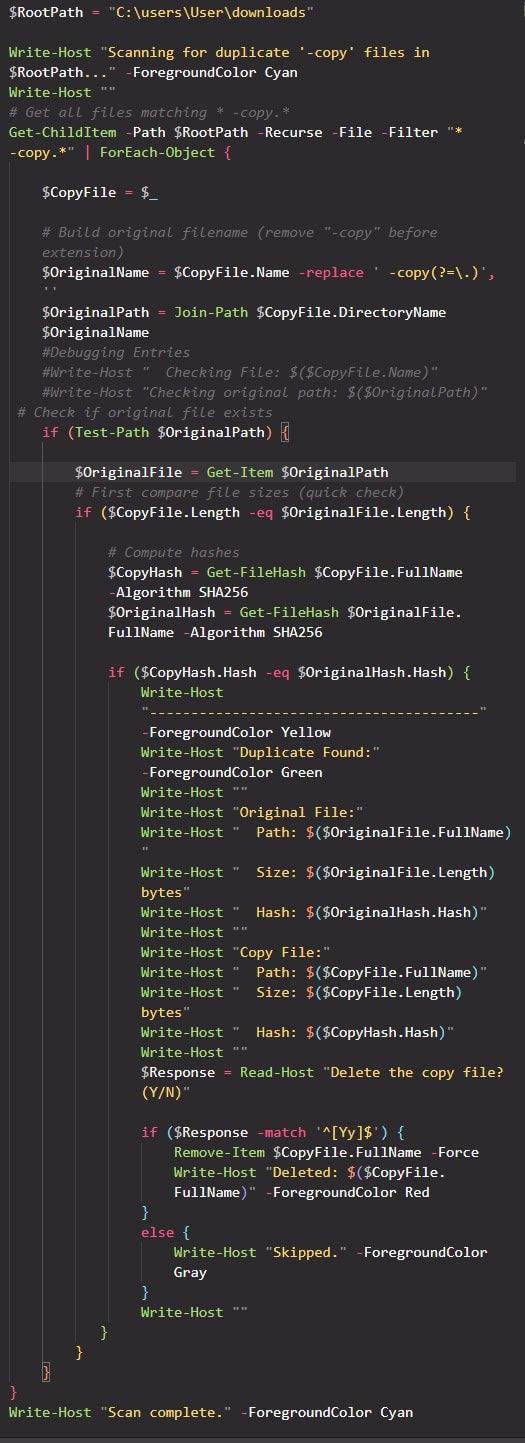
Only exact duplicates are deleted — files are compared by file size and SHA256 checksum, so modified files are preserved.
The script recurses through all subdirectories.
The user is prompted for each duplicate, providing details like file path, size, and checksum.
We also made a backup of all files to an external drive before running the script, as an extra precaution.
How to Use the Script
- Save the PowerShell script as findduplicates.ps1
- Choose the folder you want the scan to begin from by editing the $RootPath variable inside the script:
- Open PowerShell, navigate to the folder where you saved the script:
- Run the script
Tip: The script is configured to prompt before deleting. Once confident, you can safely modify it to automatically send duplicates to the Recycle Bin.
Sample Script Excerpt with user verification and forced deletion:
#image_title
Link to Github repo for the ps1 file: https://github.com/boba-feh/aspynblog/blob/main/findDuplicateFilesInSameDirectory.ps1
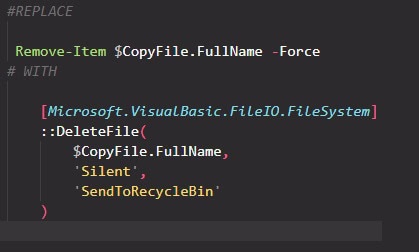
You can also modify the script to use the Windows Recycle Bin – adding another option for a “second check” before deleting permanently:
#image_title
Why This Matters for Nanaimo Businesses
Duplicate file issues can quickly consume disk space and create confusion, especially for businesses with shared documents or client data. This script provides:
- Efficiency: Bulk-checks duplicates in minutes.
- Safety: Preserves modified files.
- Guided Deletion: Works recursively through subfolders.
While many generic duplicate file cleanup tools exist, this custom, safe PowerShell approach is ideal for accidental OneDrive duplication scenarios.
For businesses in Nanaimo needing IT support, this solution demonstrates a situation-specific approach to how we can handle file recovery efficiently and safely, saving time and protecting important data.
Need help with IT support in Nanaimo?
Reach out to us today — we can provide fast, safe, and professional solutions for your business files.

