A Nanimo Business recently needed Managed IT Support to “future-proof” their accounting system that had been running on an old PC sitting under a desk! We all know the scenario – if it ain’t broke, don’t fix it, right? Well, it broke. We managed to recover the device and get it booted.
We decided it was time to migrate this machine to a VM and host it on their office Hyper-V server. The customer requested that we keep the same structure and configuration for now (versus spinning up a new, fresh VM as we suggested) due to a massive amount of “linked files” and shares that the accounting profile needed to maintain, for now.
We converted the machine to a Virtual HD using Disk2VHD and then spun up the VM. We will cover that process in another article.
We ran into an interesting problem when copying the VHD over to the Hyper-V server. The drive we were copying to was a RAID-0 mirrored pair of SSDs. There were two existing Virtual Machines running on the server utilizing this drive pair. After a couple of minutes of transfer, the two VMs began to lag and lock up. This got so bad that the transfer ended up stalling around the 50% mark, and the VMs were basically unresponsive. We killed the copy process, and normal operation ensued. The file size was roughly 250gig and due to the age of the hardware, our transfer would take roughly 1.5 hrs.
It appears that due to the large file copy, it created an I/O bottleneck. Raid-0 (Mirror) will try to write across both drives at full speed, causing huge I/O spikes that the Hypervisor has difficulty scheduling around. Seeing as this was a large single-file transfer, Windows has a difficult time using the Windows Disk Scheduler to properly throttle and leave enough throughput available for the VM operation on the same virtual disk.
We had 3 options:
- Write the VM drive to a different Virtual disk –Not optimal as the server bays were full, no way to easily add more storage without a lot more cost + the other raid pairs were storage groups running on platter drives – not optimal for VM hosting.
- Take the VMs offline and copy the file. Also not optimal as the VMs were performing business-critical services and would be a pain to take down. Even waiting for the weekend for a change control on this would have been sub-optimal as they needed access to the accounting system, and we would face information drift if they continued to operate the old Accounting hardware in the meantime
- Throttle the copy in such a way that it reduces the impact to the running VMs
We chose the 3rd option. We strive to balance best practices with the reality of running a small business – time and money is important and not all companies have the benefit of unlimited IT budgets!
We wrote a PowerShell script that utilizes robocopy in smaller blocks with a minor delay between transfers. We were able to transfer the file and get the VM booted without impacting the existing running VMs. What is even better, they were able to continue their accounting entries that very same day.
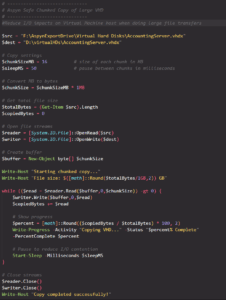
We have hosted a copy of the script here.
Simply edit the $src and $dest variables, save the code into a file like “ChunkedCopy.ps1” and run it.
We now have a happy Nanaimo Business that now benefits from an accounting VM that is properly backed up and set up with a replication system to another Hyper-V capable host in case of a future crash! (But that is a topic for another article!)

