
New RDP Security Prompts in Windows (April 2026 Update)
This morning we were notified that shared printers were not working for a customer using a remote sever. This user had unfortunately failed to read a brand-new popup presented when trying to connect. After verifying that the printers were not shared via passthrough (when they were saved as such before). we relaunched and were presented with a NEW notification from windows when connecting to resources via RDP link!
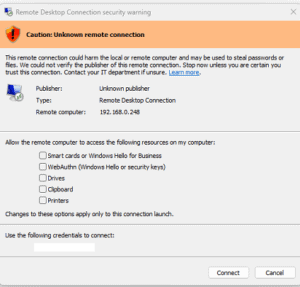
This RDP session was:
- A previously Trusted resource
- Connecting VIA IP (vs name + certificate)
- Launched from an RDP file located on the user’s desktop – saved with clipboard and printer passthrough
Unfortunately, this pop-up will happen EVERY TIME you launch an RDP session from a saved RDP file. There are ways around this that we cover later in the post.
In the meantime:
If you need access to print from the Remote Server to your Local Printer – ensure Printers is checked.
If you need to copy/move/modify files between the server and your machine directly – ensure Drives is checked.
Need to copy/paste between? Check in Clipboard.
Microsoft has introduced enhanced security protections for Remote Desktop Protocol (RDP) connections as part of the April 2026 cumulative updates:
- Windows 10: KB5082200
- Windows 11: KB5083769, KB5082052
Details about this change can be found here.
These updates are designed to protect users from malicious or tampered .RDP connection files—a common security risk.
Why Did Microsoft make this Change?
Saved RDP files can contain embedded settings such as:
- System Targets
- Device redirects (especially drives!!)
- Gateway-configs
If altered or misused, these files could potentially be used to:
- Expose sensitive information
- Prompt users to enter login details in unintended ways
- Create connections to systems that were not originally intended
The new protections help ensure users are aware of these risks before connecting.
Can This Check/Warning Be Disabled?
Technically, yes—but it is not recommended.
Microsoft allows administrators to suppress the warning using the following registry setting:
HKLM\Software\Policies\Microsoft\Windows NT\Terminal Services\Client
RedirectionWarningDialogVersion = 1
Important: Disabling this removes a critical security safeguard and should only be considered in tightly controlled environments with other protections in place.
Recommended Alternatives
Instead of disabling the warning, consider these safer approaches:
1. Launch RDP Sessions Manually
Use the built-in Windows RDP client:
mstsc.exe
- Enter the hostname or IP
- Avoid relying on saved
.RDPfiles
2. Use Command-Line Initiation
You can still streamline connections without .RDP files:
mstsc /v:server-name
This avoids triggering the new file-based warning mechanism.
3. Use Proper Certificates for Trust
One of the best long-term solutions is to ensure your RDP sessions are trusted by using certificates which we will cover in a different post!
Security changes like this can feel disruptive —but they’re designed to protect both users and organizations from increasingly sophisticated threats.
If your team relies heavily on saved RDP files, now is a great time to review how those connections are managed and consider more secure alternatives.
Need help implementing secure RDP access across your environment?
Aspyn Information Services can assist with IT Support, certificate deployment, secure remote access design, and policy management tailored to your business.
.

