

The LLM space is large, and getting larger! The space is filled with different players, OpenAI, Anthropic, Google, X all running their own models and infrastructure. Everyone seems to have launched a new AI app all wrapped around these services.
But what about my data? What if I need some LLM help on proprietary business information? Do I really feel comfortable sending my data to some other company?
This is a valid concern, but luckily there are options!
To get set up quickly with a LOCAL LLM running on your own hardware and software that you control, Ollama is a natural choice.

Ollama
In this scenario, we want to set up Ollama to use a local model that is stored OUTSIDE the normal LLM storage space.
As well, we are using an 8GB 3070 Ti graphics card. It is by no means cutting-edge, but is reflective of what many hobbyists have available to them!
This is not large enough to run many of the larger models, but more than good enough to set up a chatbot, local assistant or an LLM-assisted application.
So, we have a decent computer, as much memory as we can realistically put in the machine, a good processor, and a nice Nvidia graphics card (think gaming machine that will double as an AI workhorse!)
Download Ollama from https://ollama.com/download/windows
Once installed, open PowerShell and Check Version:
PS C:\WINDOWS\system32> ollama --version

ollama version is 0.21.0
“Ollama list” is a command that will show you what models you have downloaded – it should be empty to start.
PS C:\WINDOWS\system32> ollama list

NAME    ID    SIZE    MODIFIED
Choosing a Model
Next, we need to pull a model. There are quite a few factors to consider when choosing a model. For this stage, with our limited hardware, we need to look at mainly Parameter Size, Context, and Model Precision.
PARAMETER SIZE
Parameter size is essentially how big the model is, based on how many “learned numbers” it contains.
The LLM is a giant transformer network that includes many layers of matrices! It converts words and phrases into tokens, which are converted into embeddings (vectors – numbers with relationship data), which pass through different layers to determine how tokens relate to each other, what patterns are important, and how context is interpreted. We can dive into the science behind LLMs in future posts, but for now, we’ll focus on getting you up and running on a local model!
TLDR: Bigger Parameter size means more connections and Larger VRAM requirements!
A good “rule of thumb” chart for choosing a parameter size is based on the 0.5 bytes per parameter on 4-bit models:
- 7B → ~3.5–5 GB VRAM
- 13B → ~7–10 GB
- 30B → ~18–24 GB
- 70B → ~40–48 GB
REMEMBER – Add ~10–30% overhead for assorted other requirements
CONTEXT
With CONTEXT (how much information the model can actively consider at once), this can also eat into the space needed by your model! We need to set a context of 8192 (8k), further limiting the size we can push for the model. Since we will be utilizing this model for some financial analysis and coding, we wanted the larger CONTEXT allotment.
Small context (4K–8K)
- Fine for chat
- Struggles with long documents, large logs, and complex multi-step reasoning
Large context (32K–128K+)
- Can handle full documents, codebases, and long conversations
- But uses more VRAM, can be slower, sometimes less accurate (attention dilution)
Quantization or Weight Precision – or “The bits”
For our particular setup with limited hardware, we needed to ensure our model would run somewhat quickly!
LLMs have BILLIONS of parameters. By choosing a lower bit model, we are sacrificing a bit of precision to increase speed and save on VRAM.
Inside the model, the lowered precision rounds and compresses the weights of the model. The downsides are that it may have slightly worse reasoning, higher instances of hallucinations in certain cases, and less stable for very complex tasks.
Quantization is often referred to as Q4, Q8 etc
A simple Realistic Rule of Thumb on Quantization or Weight Precision:
Choose 4-bit When:
- Running locally on your gaming machine or lab equipment
- Best Performance per Dollar
- You have less than 24GB of GPU VRAM
Choose 8-Bit When:
- You have more VRAM (Beefier card)
- You want better performance for coding, reasoning, and longer context
Choose 16-Bit When:
- You are in an enterprise datacenter
- Have unlimited budgets (haha)
- Running A100/H100 class tensor hardware
In this case, we need a 4-bit model!
We chose QWEN2.5-coder with 7 Billion parameters (this one is great for coding with an 8 GB card – balances coding expertise with general information):
PS C:\WINDOWS\system32> ollama pull qwen2.5-coder:7b
pulling manifest
pulling 60e05f210007: 100% ▕██████████████████████████████████████████████████████████▏ 4.7 GB
pulling 66b9ea09bd5b: 100% ▕██████████████████████████████████████████████████████████▏   68 B
pulling 1e65450c3067: 100% ▕██████████████████████████████████████████████████████████▏ 1.6 KB
pulling 832dd9e00a68: 100% ▕██████████████████████████████████████████████████████████▏  11 KB
pulling d9bb33f27869: 100% ▕██████████████████████████████████████████████████████████▏  487 B
verifying digest
writing manifest
Success
You should now see the model when listing:
PS C:\WINDOWS\system32> ollama list
NAME                ID              SIZE      MODIFIED
qwen2.5-coder:7b    dae161e27b0e    4.7 GB
Next, Set Context (as discussed up top, Good for coding)
set OLLAMA_NUM_CTX 8192
And restart Ollama.
You have two main ways to run Ollama – as the default application or as a server with an API (using the command ollama serve.
Now, in this case, I wanted to run my own Memory-augmented LLM runtime to eventually build a custom Assistant and Orchestrator(will cover that in a different post). We wanted to connect to the Ollama instance using the built-in API.
I ran into 3 problems:
- The amount of Video Memory my system was using was eating up 4 Gigs BEFORE the model was loaded!
- I was storing my models on a larger fast NVME outside my installation and User directory (Ollama install on C drive, Model on D drive)
- I wanted to query my machine from a Linux development server on my network (Ollama binds to localhost by default – ignoring other connections from network interfaces – great if you are developing locally!) I set it up this way as I will have different systems for different pieces – right now my gaming card is good for development, in the future we will get an A100 or something similar set up on its own machine
I decided to attack the video memory problem first. If you don’t have enough memory, the model will offload to CPU and system memory (quite slow!)
I needed to find out what was running! Running the following command, “nvidia-smi” will provide an output of everything using the GPU.
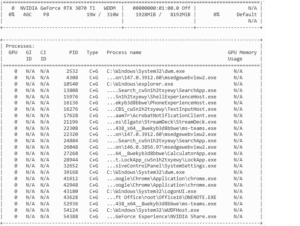
The program outputs GPU details, then details of each program using it.
The “Type” column has 3 outputs
- C – computer – CUDA or OpenCL computation
- G – Graphics – using the GPU to render something on screen
- C+G – it is using both
For the purpose of this, I closed down almost everything I didn’t need to function and turned off Chrome GPU rendering, which drastically reduced the VRAM usage.
Now I had to attack issue 2 – I was running the model OUTSIDE the default Ollama storage location (Don’t ask – I like to complicate my life!)
I ran the server: ollama serve
Now Ollama list was showing my model, so I tried to query it using the API directly:
{"models":[]}me@groovybox:/var/www/html/aiagent$ python3 basic_local_agent.py You: test STATUS: 404 RAW: {"error":"model 'qwen2.5-coder:7b' not found"} Traceback (most recent call last): File "/var/www/html/aiagent/basic_local_agent.py", line 46, in <module> response = call_llm(history) ^^^^^^^^^^^^^^^^^ File "/var/www/html/aiagent/basic_local_agent.py", line 30, in call_llm raise Exception(data["error"]) Exception: model 'qwen2.5-coder:7b' not found
Curious! If I run the Ollama executable or command line, it loads just fine! Turns out if you run ollama serve, and the LLM model is NOT in the default area, it will load a null set.
I needed to specify the model environment variable at the time of launch:
$env:OLLAMA_MODELS="D:\LLM_MODELS"
>> ollama serve
Bingo! It is now finding my model!
The last issue I ran into was network-related!
Now I wanted to ensure that I could query the model from elsewhere on my network! Unfortunately, due to Ollama binding to localhost ONLY by default. I was running into some errors:
Failed to connect to 192.168.1.222 port 11434 after 0 ms: Couldn't connect to server
I needed to specify that it should bind to all interfaces:
PS C:\WINDOWS\system32>

>> $env:OLLAMA_HOST="0.0.0.0:11434"

>> $env:OLLAMA_MODELS="D:\LLM_MODELS"

>> ollama serve
What this does is set it to bind to all interfaces on port 11434 and load models from my specified directory!
I tested again, this time from the dev machine on my network:
bdh@groovybox:/var/www/html/aiagent$ curl http://192.168.1.222:11434/api/tags
{"models":[{"name":"qwen2.5-coder:7b","model":"qwen2.5-coder:7b","modified_at":"2026-04-22T09:54:05.1874982-07:00","size":4683087561,"digest":"dae161e27b0e90dd1856c8bb3209201fd6736d8eb66298e75ed87571486f4364","details":{"parent_model":"","format":"gguf","family":"qwen2","families":["qwen2"],"parameter_size":"7.6B","quantization_level":"Q4_K_M"}}]}
Great Success!
I am now able to query the model from a different machine on the same network and connected to a model OUTSIDE the default location!
Need help implementing a local LLM Model in your environment?
Aspyn Information Services can help!

