
We ran into an interesting challenge recently with a client that had a (wall-mounted TV) that would not connect to the SSIDs of the networks in the location.
We brought up a signal analyzer and showed good signal for the SSIDs in use in the room(around 70db).
Just to ensure it was not some weird signal issue, we brought the TV into another room in Line of Sight of an AP – same issue.
The TV ( A Samsung) would see the available networks and would attempt to connect, but would eventually time out saying unable to connect. The interesting thing is we could not see this device in the Omada dashboard (not in clients, blocked, offline or history – we searched by MAC address as well).
The TV had worked fine until a variety of AP work was done – with some AP additions and moves (an exterior AP which had been temporarily used indoors had also been relocated outside).
To test further, we set up a cellular hotspot, and the TV connected fine!
At this point, we had to assume either some strange incompatibility with the AP vs the TV wifi adapter or something about the changes made to the network. As the TV was working before the network changes, we proceeded with that assumption!
Omada Cloud has an option to set a client to “lock” to a particular AP (or group of APs).
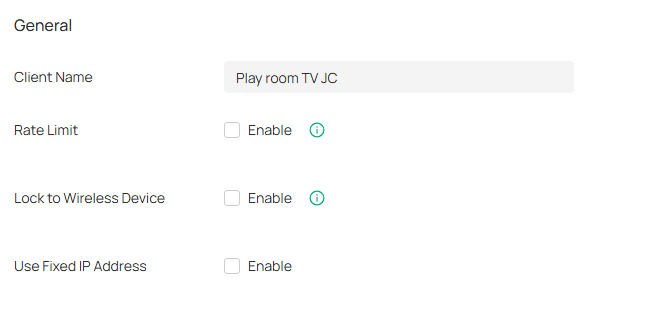
Lock a client to an AP
This setting is used to avoid having a device connect to an AP that may be in a non-optimal location.
The challenge with Omada – this setting is tied to the CLIENT in the UI, and in this case, the CLIENT WAS NOT SHOWING UP IN THE DASHBOARD!! The actual setting is applied and stored as a database entry and is only available in the UI through the CLIENT settings, despite being tied to the AP entry on the backend.
We brought up a ladder, disconnected the AP that had been relocated and renamed, and connected it to a POE switch within LOS of the TV. Sure enough, the TV connected, and now the client was showing up in the Omada dashboard.
We navigated to the setting “Clients -> Found Client -> Manage Client -> Config”
Sure enough, the AP was locked to the AP that had been relocated. We removed the client lock and are back online.
This challenge highlights a unique scenario bug with the Omada cloud UI. Had the AP been replaced or removed from the network, the client lock would have also been deleted automatically. This challenge only arose when the client was not showing up in the client history, AND the AP it was locked to still existed in the network. We have submitted the bug to TP-Link and hope it will be addressed in a future update!
Need help with your WIFI deployment or struggling with connectivity issues?
Aspyn Information Services can help!

