
If you, like many other Nanaimo Businesses have been attempting to submit T619 forms for the 2025 tax year through the CRA but generated from Simply Accounting and encountered repeated rejections from the CRA due to missing fields or empty entries, you’re not alone. We recently provided technical support to assist a client facing exactly this scenario, and here’s how we resolved it using Notepad++ and the CRA’s XML validation tools.
The Problem: CRA Rejections Due to Missing or Empty Fields
CRA often rejects T619 XML submissions with errors stating “required field missing” or “empty entry.” These errors can stem from:
XML formatting issues caused by Simply Accounting’s default export.
Missing required fields, especially when submitting as a representative via the Represent a Client (RAC) application.
For our client, the XML generated by Simply Accounting was missing the <TransmitterRepID> field, which is mandatory if you are submitting as a representative rather than the registered owner.
Step 1: Cleaning Up the XML Using Notepad++
Before checking for missing entries, the XML needs to be readable. Simply Accounting often produces XML with minimal formatting, making it hard to identify empty tags or errors.
Here’s how we cleaned up the file:
Open the T619 XML file in Notepad++.
Install the XML Tools plugin (via
Plugins > Plugins Admin > XML Tools).Use
Plugins > XML Tools > Pretty Print (XML only – with line breaks)to format the XML for readability.Save a readable copy to avoid overwriting the original.
- We downloaded the CRA schema for the 2025 tax year here: https://www.canada.ca/content/dam/cra-arc/serv-info/eservices/xmlschm1-26-3.zip
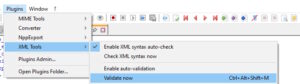
- We used the same plugin and chose “Validate Now”. This will ask for the location of the schema. Choose the file location of the T619T4 xml file.

- You can leave the Namespace URI blank:
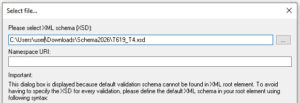

Unfortunately – no errors were found, yet CRA still would not accept the upload.
Step 2: Identifying Empty Fields
Once formatted, we searched the XML for empty tags. Common patterns include:
></— a tag that is empty> </— a tag containing only whitespace
No dice!
Step 3: Adding the Required TransmitterRepID
Finally we went through the CRA website looking for Required fields.
The website URL: https://www.canada.ca/en/revenue-agency/services/e-services/filing-information-returns-electronically-t4-t5-other-types-returns-overview/t619-2026.html
Simply Accounting did not automatically generate the <TransmitterRepID> field, which is required for representatives submitting via RAC. To fix this, we had to add the following snippet to our T619 section:
<RepID>XXXXXXX</RepID>
</TransmitterRepID>
RepID: Replace
XXXXXXXwith your 7-character representative identifier.Requirement: Mandatory if submitting via RAC as a representative.
After adding this entry, we saved the XML and revalidated it using the CRA’s XML schema.
And what do you know? Another happy customer, finally able to submit their T619 T4’s to the CRA!
Key Takeaways
Notepad++ + XML Tools is essential for identifying formatting issues and empty fields.
Simply Accounting did not include TransmitterRepID by default — add manually if submitting as a representative.
Always validate your XML against CRA’s schema before submission to avoid rejections.
By following these steps, our client successfully submitted their T619 forms for 2025 without further CRA rejections.

